

Amperes PT1801 (Discontinued): Software & USB Driver Troubleshooting Guide
Updated: Dec 18, 2025

Amperes PT1801 has been discontinued and replaced by PT1801 MK II, this guide provides all essential steps to install the final software release, unit configuration, and resolve USB connection or driver issues on Windows systems.
Table of Contents
Overview of PT1801 Setup Requirements
Applies to: Amperes PT1801 - Weekly Programmable Timer
Configurator Software Version: PT1801 Configurator V1.5 (Final Release)
Driver Required: CH340 USB Serial Driver
OS Compatibility: Windows 10 & Windows 11
To configure PT1801, you will need:
A proper USB to mini-USB-Type B data cable (not just a charging cable)
Windows 10 or Windows 11 PC/Laptop
Access to Device Manager
Step-by-Step Installation Guide
Step 1 - Connecting PT1801 with a PC
Power on PT1801 unit.
Connect the USB to mini-USB-Type B cable to the PT1801.
Connect the other end to your PC (Windows 10/11).
Important: If Windows gives no connection sound or no detection, your cable may be charging only - replace it with a true data cable.
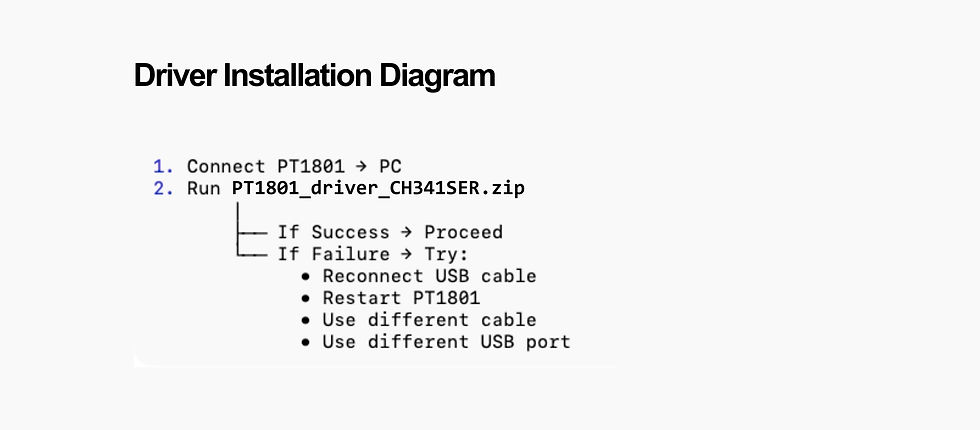
Step 2 - Install the USB Driver
After connecting PT1801 on your PC,
Run PT1801_driver_CH341SER.zip as administratorIf installation succeeds → proceed to Step 3.
PT1801 Driver Installation Diagram
Common Issue: Driver Installation Failure
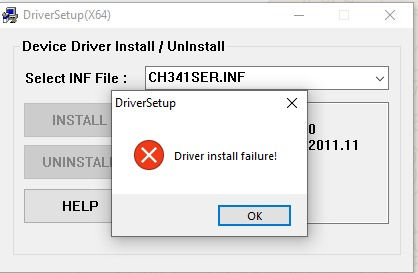
If you see an error like "Driver install failure!" as image below, see troubleshooting steps below:
Solution: Reinstall the USB driver:
Unplug the mini-USB cable from PT1801
Plug it back firmly
Reinstall the driver again
Turn PT1801 OFF and ON again
Reconnect PT1801
Check "Device Manager" → Ports (COM & LPT)
You should see something like:
USB-SERIAL CH340 (COMxx)Try another USB port or another data cable
Some ports block unsigned drivers
Some cables are charging-only
Step 3 - Verify Driver Status in Device Manager

Ensure the CH340 USB driver is installed and visible under:
Start → Device Manager → Ports (COM & LPT)You should see:
USB-SERIAL CH340 (COMxx)If visible → your driver is working
If NOT visible → PT1801 is not recognized (see troubleshooting).
Device Manager Check Diagram

Common Issue: PT1801 Does Not Appear Under COM Ports
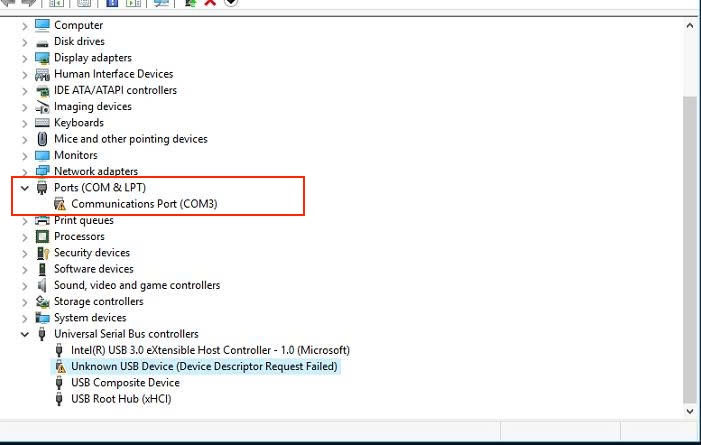
If PT1801 is NOT visible, try troubleshooting options below:
Unplug and reconnect PT1801
Restart PT1801
Use a different USB data cable (not a charging cable)
Try another USB port on your PC
Reinstall the driver again
Test on another computer
If still not detected → it might be hardware USB chip issue (repair needed)
Important: If PT1801 is still not showing, check whether the driver is installed correctly — an incomplete driver installation can prevent it from appearing.
Step 4 - Open PT1801 Configurator V1.5

Run the software
Click Connect button
If the connection is successful, you may now:
edit ringing schedules
configure weekly events
If you receive "Time Out" repeatedly, see troubleshooting below.
Common Issue: PT1801 Shows "Time Out"
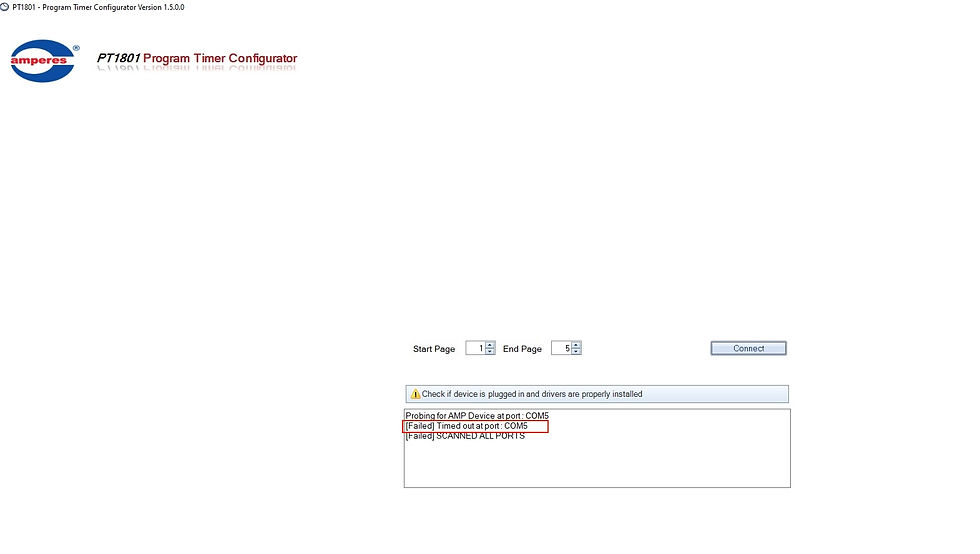
Here's how to fix when PT1801 software shows "Time Out" on Windows 10/11:
Reassign PT1801 to other available COM ports
Reconnect USB cable to PT1801 (Try another data cable if it's not working)
Restarting the software
Common Issue: Driver Pre-Installed in PC / Laptop

If you see this message, it means the CH340 USB driver is already installed in your system, but the PT1801 may not be connected during installation.
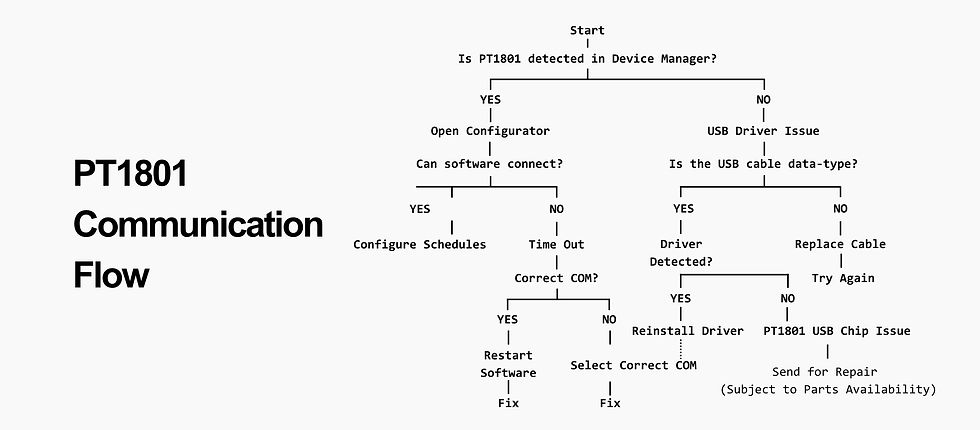
PT1801 Communication Flow
When to Consider an Upgrade
PT1801 is discontinued, and Windows updates may eventually stop supporting older drivers. We encourage users to upgrade to current models for improved reliability and long-term support.
Upgrade to PT1801 MK II is recommended if:
PT1801 still does NOT appear in Device Manager
USB port becomes unstable
Likely USB communication chip failure
Drivers stop installing after Windows updates
Software not detecting PT1801 at all
Repeated "Time Out" issues occurred
Contact Support
If you still experiencing connectivity and configuration issues, kindly provide following details to us:
Windows version you're using
Screenshot of Device Manager (Ports)
Software error screenshot
Description of cable used
Feel free to contact us and our team will help where possible, subject to remaining support availability for discontinued / legacy products.


